Showing posts with label Technology. Show all posts

Sunday, January 26, 2014

W3schools Offline Mode Latest Version Free Download

Hey friends Here I am giving you the offline latest version of w3schools for free download. Are you interested in web designing? I’m sure that most of you are interested. So you have to learn some basics in HTML, CSS, Java script to make your own website with great content and quality. If you have searched about web designing previously in Google you may have noticed that w3schools website ranks for most of the search terms. Yes they are since they are the most quality tutorial producers. But it must be sometime inconvenient to browse that website always online. What if this w3schools can be downloaded? Yes you can download the whole website now. Sounds crazy ? no its not.

w3schools

Offline version of w3schools:

W3schools.com is the one of the best website that can used for learning nearly all most commonly used web designing languages. It serves us with tutorials on languages such as HTML, CSS, Java Script, PHP, SQL, Jquery. Now this website is available to download in the offline form.
On downloading this website in offline form you may be able to use most of this websites feature without any Internet connection you may gift this package to your friend who has a burning desire to developer knowledge in web designing field but no Internet connection.

How to use this?

Step 1:
First of all download the offline package of w3schools from the link given here. Don’t worry the size of the package is just ~2 Mb. Just download the package from the link given below.
Download : W3Schools Offline Latest Version
Step 2:
Now extract the package. The size of the package after extraction may be of up to 100+ Mb so keep some free space for it. The main file to open is situated in the folder www.w3schools.com . This folder has two files known as default. One is a notepad file and another is a html file. Double click on the html file. That’s it. w3screen1

This offline package is just for quick reference and beginning. Because it does not have any pictures and live demonstration can’t be done.
So for full usage and live demonstration you must use W3schools website.
Offline version of this website will just look like below. Happy Learning.
w3offline
 
Download : W3Schools Offline Latest Version

Sunday, January 19, 2014

Magnet links v/s torrent files

Several infamous torrent websites have decided to move to magnet links exclusively instead of .torrent files. Here we provide a comparison and contrast between these two file types and describe why these sites have ultimately decided to make the switch.
k-bigpic 
The most important thing that users will need to understand is that the major torrent sites will continue to function in the same manner. Downloading files is still goal, and all modern torrent clients have had the capabilities of using magnet links along with .torrent files for quite a while. Although most users will use them the same, important differences do exist.
The difference in .torrent files and magnet links
To explain this better, let’s use an example. Let’s assume that I go on a popular torrent website looking to download a linux distro. By using torrents instead of downloading the file directly, I likely can download it faster, help other people download it faster, and save the linux distributor some bandwidth cost.
When my torrent client reads a .torrent file, it learns how the file collection is divided and where it can download all the pieces. The .torrent file just provides the directions for the torrent client on how to find and download all the chunks of data. Once downloaded, the client rebuilds the chunks into my working linux distro. Since .torrent files are simple data files, they are easy to read, find and scrape. Therefore, they are copied and shared quite prolifically.
Magnet links accomplish the same sharing of data without using an actual .torrent file. Instead of an actual .torrent file sitting on a server describing the data chunks, the magnet link itself describes the methods. In fact, magnet links can use methods of obtaining the file other than or in addition to those of torrents. The magnet link gives the torrent client enough information to reach out to other users to grab the data needed to start the downloading process.
Thus, magnet links allows users to get the download information directly from other users instead of through an actual .torrent file.
Why the move away from .torrent files?
Ans:- .torrent file is a file that sits on a server somewhere. The files take up space. For somebody to share a .torrent that server must be up and available to all parties. With torrent index sites frequently under attack for their potentially illegal uses, an available server is not guaranteed.
By doing away with the .torrent files, magnet links takes the dependence of the server out of the equation. By using the magnet link, users can get information from other users directly. Additionally, by this process the user increases his or her chance of the torrent process working in case the original tracker is not public or closed.
Advantages of magnet links over .torrent files
1. Torrent index sites will have lower bandwidth and space requirements.
2. Easier to share just a link than to share a link to a file on a server.
3. Magnet links should be updated where .torrent files may not be.
4. Better chance of success even if a specific tracker is not available.
5. Ability to obtain download from alternative, non-torrent methods.
Disadvantages of magnet links over .torrent files
1. Initially they are slower as connections are made to other peers to find the data.
2. It’s more difficult to download specific files using magnet links versus torrents.
If you like our Blog Post then please also like our  Facebook Page.

Tuesday, January 14, 2014

Understanding file systems(NTFS, FAT, FAT32,Ext2, Ext3, Ext4 etc.)

At present there are plenty of electronic devices that are intended to store information in electronic form. They include personal and server computers, personal digital assistants (PDA), mobile phones and so on. These devices store huge amount of personal or corporate information. The information is stored in a form of so-called 'files' which take some amount of 'storage space' and contain the actual information: documents, presentations, pictures, music, video, databases, email messages etc.
If you are interested in lost information recovery - it's recommended to have basic understanding of how information is stored on a computer device.

index
Before understanding about file system you must know about the file. So what is a file?.
According to Wikipedia:-
A computer file is a block of arbitrary information, or resource for storing information, which is available to a computer program and is usually based on some kind of durable storage. A file is durable in the sense that it remains available for programs to use after the current program has finished. Computer files can be considered as the modern counterpart of paper documents which traditionally are kept in offices' and libraries' files, and this is the source of the term.
OR
In simpler terms:- A file is the smallest allotment of logical secondary storage.
What is file system?
According to Wikipedia:-
A file system (file system) is a means to organize data expected to be retained after a program terminates by providing procedures to store, retrieve and update data, as well as manage the available space on the device(s) which contain it. A file system organizes data in an efficient manner and is tuned to the specific characteristics of the device.
Now let goes deep into it to find more accurate definition of file systems (Long But Informative).
Any computer file is stored on some kind of storage: hard disk, CD, DVD, flash memory and so on. These storages have specific, model-dependent capacity to store data. From the software point of view (including operating system) each storage is linear space to read or both read and write the digital information. Each byte of the information on a storage has its own specific offset from storage start (the address) and could be referenced by this address. You may imagine storage as grid with set of numbered cells (each cell - the single byte). Any file saved to storage takes a number of these cells.
Historically, computer storages like hard disk, CD, DVD or flash memory use pair of sector and in-sector offset to reference any byte of information on storage. The sector is the group of bytes (usually 512 bytes) that is minimum addressable unit of the physical storage. For example, byte 1030 on hard disk will be referenced as sector #3 and offset in sector 16 bytes ([sector]+[sector]+[16 bytes]). This schema is used to optimize storage addressing and use smaller number to reference any portion of information on the storage.
To omit second part of the address (the in-sector offset), files on storage are usually stored from the sector start and take all whole sectors (e.g.: 10 byte file takes a whole sector, 512 byte files also takes one sector, 514 byte file will take two whole sectors and so on).
Each file will be stored to 'unused' sectors and could be read then by known position and size. However, how do we know what sectors are used or unused? Where are file size and position stored? Where is file name? This answers give us the file system.
File system - is just a kind of structured data representation on a storage and set of metadata to describe the stored data. Unlike plain storage, file system could be located on disk partition - the isolated segment of storage. Usually it operates blocks, not sectors. The file system blocks are groups of sectors aimed at storage addressing optimization. Modern file systems generally use block sizes from 1 up to 128 sectors (512-65536 bytes). The files are usually stored from start of block and take entire blocks.
Many write/delete operations to file system could cause file system fragmentation: the files could not be stored as whole fragments anymore and are divided to fragments. Here is an example of “fragmentation”: imagine a storage entirely taken by files with size about 4 blocks (e.g. pictures collection). User wants to store a file that would take 8 blocks and therefore deletes the first and the last file. By doing this he releases 8 blocks, however the first segment is near to storage start, and the second near to storage end. In this case 8 block file will be split into two parts (4 blocks for each part) and will take free space 'holes'. The information about both fragments which are parts of of a single file will be stored to file system.
Apart from user files, file system also stores its own parameters (as block size etc.), file descriptors (that include file size, file location, its fragments etc.), file names and directory hierarchy. It may store also security information, extended attributes and other parameters as well.
There are many requirements to storage performance, stability and other qualities of the file system. To best suit a specific purpose there have been developed many different types of file systems. So at present we can see plenty of file systems that are used on different types of computer systems and serve specific purposes.
Now lets study about various file system and their features quickly:-
Various file systems:-
  1. FAT (File Allocation Table):
    1. Introductions:-
      The file system is one of most simple types of file systems. It consists of file system descriptor sector (boot sector or superblock), file system block allocation table (referenced as File Allocation Table) and plain storage space to store files and folders. The files on FAT are stored in directories. Each directory is the array of 32-byte records, each defines file or file extended attributes (like long file name). File record references a first block of file. Any next block could be found through block allocation table by using it as linked-list.
      Block allocation table contains array of block descriptors. Zero value indicates block is not used and non-zero indicates reference to next block of the file or special value for end of file.
      The number in FAT12, FAT16, FAT32 file system name means how many bits are used to number file system block. This means that FAT12 may use up to 4096 different block references, FAT16 - 65536 and FAT32 - 4294967296. Actual maximum count of blocks is even less and depends on file system driver implementation.
    2. Version of FAT file system:-
      FAT 12-The initial version of FAT introduced in 1977.
      • Primary file system for Microsoft System upto MS-DOS 4.0
      FAT 16-Introduced in 1988,primary file system for MS 4.0 upto Windows 95​.
      • Support drive size upto 2 GB.
      FAT 32​-Latest version of FAT,introduced in 1996 for windows 95 OSRL Users.
      • Support drive size upto 8TB.
    3. Applications:-
      FAT12 was used for old floppy disks. FAT16 (or simply FAT) and FAT32 are widely used for flash memory cards, USB flash sticks and so on. It is supported by mobile phones, digital cameras and other portable devices.
      FAT or FAT32 could be identified as file system, used on Windows-compatible external storages or disk partitions with size below 2GB (for FAT) or 32GB (for FAT32). Windows can not create even FAT32 file system over 32GB (however Linux supports FAT32 up to 2TB).
  2. NTFS (New Technology File System):
    1. Introductions:-
      It was introduced in Windows NT and at present is main file system for Windows. It is default file system for disk partions and the only one file system that is supported for disk partitions over 32GB. The file system is quite extensible and supports many file properties, including access control, encryption etc. Each file on NTFS is stored as file descriptor in Master File Table and file content. Master file table contains all information about file: size, allocation, name and so on. The fist and the last sectors of the file system contain file system settings (the boot record or superblock). The file system uses 48 and 64 bit values to reference files thus it supports quite large disk storages.
    2. Features:-
      1. It uses 64-bit disk addresses and can support disk partitions up to 264 bytes.
      2. Individual file names in NTFS are limited to 255 characters. Case sensitive names.
      3. Encryption & Data recovery.
      4. Compression.
      5. File level security.
      FILE ENCRYPTION:-
      Encrypting file system is used to encrypt files in NTFS.
      Generally Public Key cryptography is used
    3. Data Recovery:-
      It offers data recovery mechanism.
      File Compression:-
      NTFS can perform data compression on individual files or on all data files in a directory.
    4. Security:-
      NTFS allows file level security.With NTFS permissions ,one can control which users have what kind of access to which files.
      Security can be assigned at two different levels
      1. Per user basis
      2. On a group basis
      Network File System (NFS)
  3. Network File System (protocol)
    1. Introduction:-
      Network File System (NFS) is a network file system protocol originally developed by Sun Microsystems in 1984, allowing a user on a client computer to access files over a network in a manner similar to how local storage is accessed. NFS, like many other protocols, builds on the Open Network Computing Remote Procedure Call (ONC RPC) system. The Network File System is an open standard defined in RFCs, allowing anyone to implement the protocol.
    2. NFS Protocols:-
      NFS accomplishes two client-server protocol-
      1. The Mount Protocol- it handles mounting.
      2. The NFS protocols- which is for directory & file access.
      Daemons
      NFS server daemons (nfsd)
      Accept RPC calls from client.
  4. The extended file system (ext)
    1. Introduction:-
      The extended file system (ext), was released in April 1992 as the first file system using the VFS API and was included in Linux version 0.96c .
    2. Features:-
      1) allowed 2 gigabytes of data
      2) filenames of up to 255 characters.
      Limitation of Ext:-
      There was no support for separate access
      i-node modification and data modification timestamps.
    3. Solution:-
      A new filesystems were developed in January 1993 by Rémy Card .
  5. The second extended file system (ext2 )
    1. Introduction:-
      The Second Extended File system was devised as an extensible and powerful file system for Linux. It is also the most successful file system so far in the Linux community and is the basis for all of the currently shipping Linux distributions.
      Ext2 data structures
      Physical Layout of the EXT2 File system
      i-node structure of ext-2:-
      Features of ext -2
      POSIX ,ACL and extended attribute were first introduced.
      Journaling not allowed with flash drives.
    2. Disadvantages:-
      Limit of sublevel directory 32768
      Cannot handle file larger than 2TB
      Block size is limited by architecture
  6. The ext3 or third extended file system
    1. Introduction:-
      The ext3 or third extended file system is a journaled file system that is commonly used by the Linux kernel. It is the default file system for many popular Linux distributions, including Debian. Stephen Tweedie first revealed that he was working on extending ext2 in Journaling the Linux ext2fs File system in a 1998 paper and later in a February 1999 kernel mailing list posting, and the file system was merged with the mainline Linux kernel in November 2001 from 2.4.15 onward.
    2. Disadvantages:- 
      Functionality
      Defragmentation
      Compression
      No check summing in journal..
  7. The ext4 or fourth extended filesystem
    1. Introduction:-
      Ext4 is the evolution of the most used Linux filesystem, Ext3. In many ways, Ext4 is a deeper improvement over Ext3 than Ext3 was over Ext2. Ext3 was mostly about adding journaling to Ext2, but Ext4 modifies important data structures of the filesystem such as the ones destined to store the file data. The result is a filesystem with an improved design, better performance, reliability, and features.
    2. Features:-
      • Compatibility (the filesystem can continue to be mounted as ext3) – This allows users to still read the filesystem from other distributions/operating systems without ext4 support (e.g. Windows with ext3 drivers)
      • Improved performance (though not as much as a fully-converted ext4 partition)
  8. ReiserFS
    1. Introduction:- the alternative Linux file system with the main purpose to store huge amount of small files. It has good capability of files search and it allows to 'compact' files allocation by storing file tails or small file along with metadata and to not use large file system blocks for this.
  9. Some Other file systems:-
    1. XFS - the file system from SGI company who initially used it for their IRIX servers. Now XFS specifications are open it the file system support was implemented in Linux. The XFS file system has great performance and thus widely used as file storage file system.
    2. JFS - the file system was developed by IBM for their powerful cumputing systems. Saying JFS one usually mean JFS, second edition (JFS2). Currently this file system is open-source and is implemented in most modern Linux distributions.
    3. UFS:- The most common file system for these OS is UFS (the Unix File System). It is also often called FFS (the Fast File System; it is 'fast' in comparison with a previous file system used for Unix). The UFS is the source of ideas for many other file system implementations.
      Currently UFS (in different editions) is supported by all Unix-family OS and is the main file system of BSD OS and Sun Solaris OS. The modern tendency is to implement replacements for UFS in different OS (ZFS for Solaris, JFS and derived file systems for Unix and so on).
    4. Clustered file systems:-
      The clusterd file systems specifics is that they are used in computer cluster systems. These file systems have embedded support of distributed storage.
      • ZFS - Sun company 'Zettabyte File System' - the new file system developed for distrubuted storages of Sun Solaris OS.
      • Apple Xsan - the Apple company evolution of CentraVision and later StorNext file systems.
      • VMFS - the 'Virtual Machine File System' developed by VMware company for its VMware ESX Server.
      • GFS - the Rad Hat Linux 'Global File System'.
      • JFS1 - the original (legacy) design of IBM JFS file system used in older AIX storage systems.


Thursday, January 9, 2014

How a Touch Screen Works

The touch screen technology has really taken off for quite some time now and today is the dominant input method in our phones,tablets and in some even in some laptops.Today they are used almost everywhere, from ATMs to cameras to kiosks. From being sluggish and unresponsive a few years back today the touch screens are fast and fluid. So how do they rally work. Here is a explanation for that.
Broadly there are two types of touch screen: Resistive and Capacitive.
Resistive touch screens: As the name suggest, it works on the principle of resistivity. Resistive touch technology works by sensing direct pressure.
resistive-touch-screen
The resistive touch screen consists of flexible top layer made of polythene and rigid bottom layer made of glass. Both the layers are spaced with spacers and are coated with indium tin oxide. When the screen is operating a small current flows in between the space. When a touch is made, the flexible screen presses down to touch the glass layer. A change in current is hence detected and coordinates of the point of touch calculated by the controller and parsed into readable signal for the operating system to react accordingly.
Capacitive Touch Screen:  In the capacitive system, a layer that stores electrical charge is placed on the glass panel of the monitor. When a user touches the monitor with his or her finger, some of the charge is transferred to the user, so the charge on the capacitive layer decreases. This decrease is measured in circuits located at each corner of the monitor. The computer calculates, from the relative differences in charge at each corner, exactly where the touch event took place and then relays that information to the touch-screen driver software.
200px-Touchscreen
So which is better ? Well, each has its own advantages and disadvantages.
Resistive touch screen can work with bare fingers, gloved fingers or stylus, as long as there is something that creates the pressure. Resistive touch screen is also much cheaper than capacitive counterpart. However it is less sensitive than capacitive touch screen and has poorer display outdoors.Resistive touch screen is now usually confined to kiosks in public places and electronics like printers which require limited touch gestures.
Capacitive is the expensive of the two. It is more sensitive and can support multi touch too. It is now dominantly used in mobile phone, tablets and other handheld devices. However it only works with bare hands and is less resistant than resistive touch screen.


Wednesday, January 8, 2014

Best File System for Your USB Drive?

It can be tough porting your videos and music to every device you use. How do you know your Mac, Xbox, and Windows Machine can read your files? Read on to find your perfect USB drive solution.
File systems are the sort of thing that many computer users take for granted. But what are they, and what system supports what? It can be confusing, and a serious headache to deal with if you’re unprepared. Read on to see what will work best for you when you have to decide how to format your usb disk.
Understanding File System Problems
File systems are ways of organizing data, with each various file system usually associated with a specific operating system. Since only binary data can be written to hard disks, the file systems are a key part of the translation from physical recordings on a drive to the files read by an OS. Since these file systems are key to the operating system making sense of the data, an OS cannot read data off of a hard drive without support for various file systems, i.e. without the ability to translate from where the data is physically written to the hard disk. When you choose “format” on a disk, you’re basically deciding what devices can and cannot read it or write to it.

There are myriad numbers of file systems, many of them created for depreciated operating systems. Nowadays, many computer users will have multiple PCs in their home—some running Mac OS, some running Windows, perhaps even some running Linux. Because of this, it’s becoming more and more necessary to have portable disks that can move from OS to OS without issue. But to do that, we have to take a look at major issues that will cause you problems when porting drives from device to device. These are portability and file size limits.
Problem 1: Portability

The three most common file systems are NTFS (the Windows standard), HFS+ (the OS X standard), and FAT32 (an older Windows standard). You might think that modern operating systems would natively support each other’s file system, but they largely do not. Mac OS (even in Lion, the current version), will not write to an NTFS formatted hard disk. Windows 7 does not even recognize HFS+ formatted disks and either ignores them or treats them as unformatted.
Many distros of Linux (like Ubuntu) are prepared to deal with this file system problem. Moving files from one file system to another is a routine process for Linux—many modern distros natively support NFTS and HFS+ or can get support with a quick download of free software packages.
In addition to this, your home consoles (Xbox 360, Playstation 3) only provide limited support for certain filesystems, and only provide read access to the USB drives. In order to better understand the best filesystem for your needs, take a look at this helpful chart.
5
Keep in mind that these are native abilities of the OS to read/write to these file systems. Mac OS and Windows both have downloads that will help them read unsupported formats, but this article is more about what is natively supported, not how to get that support. But if you have a favorite solution for reading NTFS on Mac, or HFS+ on Windows, tell us about it in the comments!
FAT32 has been around for so long that many devices and operating systems support it natively, making it a strong choice for a file system on a spectrum of devices. The major problem with FAT32 is that it limits the size of individual files, as well as the size of volumes. If you have to store, write, and read huge files, FAT32 may not be the clear winner. Let’s take a look at that now.
FAT32 was developed many years ago and was based on older FAT filesystems meant for DOS computers. The large disk sizes of today were only theoretical in those days, so it probably seemed ridiculous to the engineers that created FAT32 that anyone would ever need a filesize larger than 4 GB. However, with today’s large filesizes of uncompressed and high-def video, many users are faced with that very challenge.
Today’s more modern file systems have upward limits that seem ridiculous by our modern standards, but one day may seem humdrum and ordinary. When stacked up against the competition, we see very quickly that FAT32 is showing its age.
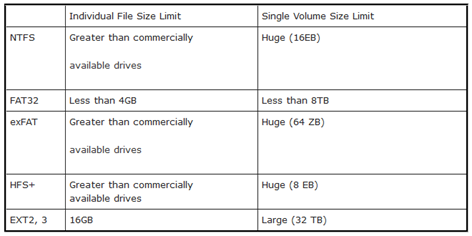
8
Every newer file system handily whips FAT32, allowing for files sometimes ridiculously larger than 4GB. EXT, which supports 16GB files (up to 2TB files on some systems), has the second smallest individual file size on this list. The other file systems measure their maximum file sizes in Petabytes and larger, making them many thousands of times larger than FAT32.
The conclusion to draw from this is that FAT32 has its issues, and may be phased out as newer devices begin to support file systems like exFAT, Microsoft’s successor to FAT32. The basic rule of thumb is that FAT32 is the best bet for most users, unless they have file sizes greater than 4GB, in which case, you have to think long and hard about what your specific needs are. Hopefully we’ve laid out enough information to help you make a decision. From here, you can check out a few links to help you to properly format your drives.
Formatting Your Drives
FAT32: It’s a myth that FAT32 drives are limited to ridiculously small sizes, like 32GB. Depending on the file system and software used to create the volume, you can create very large FAT32 drives, even up to several TB. Here are a few ways to format your drive with FAT32.

NTFS or exFAT: While it may one day eclipse FAT, exFAT is not as well supported as it could be. And NTFS is useful enough if you’re going to work only with Windows machines and Linux systems (edit: and newer versions of OS X, including a fully updated Snow Leopard) with support for it.  Here’s two ways you can format NTFS or exFAT.
  • Computer Management (Windows 7): Go to your start menu and type “Computer Management” to bring up that tool. From there you can use “Disk Management” to navigate to drives and right click to format them. You should be able to choose between NTFS and exFAT. This can be useful, as uninitialized, unmounted drives appear here, when they don’t appear in “My Computer.”
  • Quick Format (Windows 7): Simply look at all the drives mounted under “My Computer,” then right click and choose “Format.” You should have the choice between NTFS and exFAT.
HFS+: You won’t likely need HFS+ unless you’re doing a lot of work with Macs. In that case, Mac OS’s Disk Utility will do the trick again. Simply choose “Mac OS Extended” with or without Journaling.
EXT 2 or EXT 3: In addition to offering native support for FAT32 and downloadable support for NTFS and HFS+, GParted will create and manage partitions, and is pretty much the best game in town for creating Linux EXT volumes.
That, in a nutshell, is what you should know about the most common file systems. Think we’ve left anything important out? Feel free to tell us about it in the comments, or tell us about how you use your own USB drives.
To know more about various filesystem you can also read our other blog postings.

1. Understanding file systems(NTFS, FAT, FAT32,Ext2, Ext3, Ext4 etc.)
2.  File System at Glance
------------------------------------------------------------------------------------------------------
For more info please like our facebook page: https://www.facebook.com/programmer2world
Article credit: howtogeek.com, wikipedia.


Tuesday, January 7, 2014

Understanding IPv6: What it means and how will it affect us ?

The first major version of IP, Internet Protocol Version 4 (IPv4), is the dominant protocol of the internet. Its successor is Internet Protocol Version 6 (IPv6). It was officially launched on 6th June. First let us look at what is Internet Protocol.
The Internet Protocol (IP) is the method or protocol by which data is sent from one computer to another on the Internet. Each computer (known as a host) on the Internet has at least one IP address that uniquely identifies it from all other computers on the Internet. 
When you send or receive data (for example, an e-mail note or a Web page), the message gets divided into little chunks called packets. Each of these packets contains both the sender's Internet address and the receiver's address. Any packet is sent first to a gateway computer that understands a small part of the Internet. The gateway computer reads the destination address and forwards the packet to an adjacent gateway that in turn reads the destination address and so forth across the Internet until one gateway recognizes the packet as belonging to a computer within its immediate neighborhood or domain. That gateway then forwards the packet directly to the computer whose address is specified.
network_wan_lan
Why do we need it?
The explosive growth in mobile devices including mobile phones, notebook computers, and wireless handheld devices has created a need for additional blocks of IP addresses.  The growth of the Internet has created a need for more addresses than are possible with IPv4, which allows 32 bits for an IP address, and therefore has 232 (4 294 967 296) possible addresses. IPv6, which was developed by the Internet Engineering Task Force (IETF) to deal with this long-anticipated IPv4 address exhaustion, uses 128-bit addresses, allowing 2128 (approximately 3.4×1038) addresses.
img_ipv4ipv6
IPv6 and IPv4 share a similar architecture. The majority of transport layer protocols that function with IPv4 will also function with the IPv6 protocol. Most application layer protocols are expected to be interoperable with IPv6 as well, with the notable exception of File Transfer Protocol (FTP). FTP uses embedded network layer addresses to facilitate data transmission. An IPv6 address consists of eight groups of four hexadecimal digits. If a group consists of four zeros, the notation can be shortened using a colon to replace the zeros.
A main advantage of IPv6 is increased address space. The 128-bit length of IPv6 addresses is a significant gain over the 32-bit length of IPv4 addresses, allowing for an almost limitless number of unique IP addresses. The size of the IPv6 address space makes it less vulnerable to malicious activities such as IP scanning. IPv6 packets can support a larger payload than IPv4 packets resulting in increased throughput and transport efficiency.

ipv4-vs-ipv6-graphic
What it mean to us ?
For most end-users and SMBs, nothing will change, as their computers will continue to connect to the Internet and their favorite services will remain online. However, it is a significant milestone as companies shift their focus to building up their IPv6 infrastructure, and slowly wean off the older IPv4 network.
As was the case for last year's IPv6 Day, most users won't even notice when their ISPs make the switch to IPv6. Part of the reason is because most modern operating systems, including Apple's Mac OS X, most versions of Microsoft Windows, and major Linux distributions, have supported IPv6 addresses for a number of years. Check out your computer's IP address (on Windows machines, type ipconfig at the command prompt): you are most likely going to see the IPv4 address as well as longer string of letters and numbers making up the IPv6 address.
You can test you IPv6 connectivity at http://test-ipv6.com/.


Monday, January 6, 2014

DuckDuckGo Vs Google

timthumb.php
I like trying new things, and the new hotness on search engine world is DuckDuckGo. So I decided to unhook from Google and use DuckDuckGo exclusively for a month. You too can do this by following this guide for Chrome. 
A few things originally attracted me to DuckDuckGo:
  1. Privacy.
  2. Instant Answers.
  3. !bang.
Previous to switching to DuckDuckGo I thought those were all killer features, after using it for a month it very much had a sobering affect. That being said, the work done by Gabriel Weinberg and his team is quite remarkable.

!bang

This basically injects your search query into the site which you specified with the !bang syntax for example if I wanted to know about lists in python. I would simply enter the search ‘!python lists’. That would redirect me to a search performed on the python site with their implementation of search on their site. This is very clever for DuckDuckGo allows them to scale pretty quickly and potentially provide good search results on site by site basis. 
In my experience using this feature albeit useful in some cases it generally doesn’t work, because most site’s internal search engines suck, returning results that are somewhat hit or miss. 
In most cases a simple search would have sufficed. So directing to a internal search engine ruins the entire search experience. 

Winner: Google.

Searches

I still can’t put my finger on it, but even in cases where Google and DuckDuckGo returned similar results I still found myself favouring Google. 
This brings something very interesting to light, I have gotten really good at processing information returned from Google searches. I can quickly determine what is a useful result and what isn’t. 
If I had a gun to my head, I would have to say where the URL placement is what is affecting my comfort with the search engine. This might have been something I learned by exclusively using Google my entire life or something I do to ensure I open relevant links. First thing I do is look at the title, then immediately the URL just to serve as confidence check for a good result. 

Google result. 

DuckDuckGo result.
As you can see the URL placement in the DuckDuckGo result is the last thing you look at when looking at a search result. Regardless of the result my search will be contained somewhere in the snippet. I think the URL should take precedence in the search result over the snippet this lets you quickly determine favoured vs. unfavoured domains. 
Another thing you might notice, I have +1’d the link above in Google result. Which would show up in results for my friends if they have a search that returns that link as a result, which in my opinion is quite awesome, and adds to the confidence of finding what you are looking for and a sense of being somewhere a friend has been.
The real killer feature that DuckDuckGo has is the instant answer result at the top of most searches. 

This result can be retrieved from many sources like Wikipedia and Wolfram Alpha. This extremely useful for mobile platforms and things with concrete answers like age of Barack Obama. Albeit slightly transparent on how the search is being done, it proves to be useful in most cases. This is a direction I would love all search engines to begin evolving in. 
DuckDuckGo is lacking in more refined location based search, as well as searching for more timely searches like for example when a beastie boy dies. This is an area that I would love to see some serious improvement in DuckDuckGo it would definitely help with wider adoption.
Winner: Google

Privacy

DuckDuckGo does certainly delivers on this promise, but at what cost? I certainly don’t mind a search engine using my previous search history to help me find better content. But there is a fine line between using previous searches to return better results and omitting results altogether. As content refinement based on tastes and previous results will eventually lead to omission of results Google determines irrelevant to your interests. Is this good or bad? I don’t know.
But DuckDuckGo clearly provides less affected search results to its users. 
Winner: DuckDuckGo.

Customization

Google customization virtually non-existent. DuckDuckGo however has launched this new initiative called DuckDuckHack. 
Which is basically a plugin platform for instant answers which allows developer and users of the search engine to write plugins for areas of interest (programming, gaming and documentation). Therefore improving instant answer results for the entire site.
Beyond this you can customize the search engine layout and colors, which is anonymously saved to the cloud. You can customize various settings from region all the way to look and feel of the site itself. 
Winner: DuckDuckGo

Conclusion

I for one favour competition in this space, gives me options as a consumer as well as creates better products for us all.
Google can certainly takes cues from where DuckDuckGo is headed with search with things like instant answers and privacy measures. 
With that being said DuckDuckGo is a serious contender for many users default search engine, but for me I found it to lack the laser like accuracy in some of innovative features which detracted from the total search experience. It is extremely customizable and I am sure they have found their niche to keep them going until they can deliver this accuracy in all features. 
Until then, look for my +1s.

Do you know : 720p/1080p Means what ??

720p/1080p and similar others are resolution formats that you often find in video sharing sites, in TV advertisements or in video cameras.  Here is a quick explanation for what it means.
720p means that the screen has 720 horizontal lines and 1280 vertical lines. In other words it has a resolution of 1280 x 720. Similarly 1080p has a resolution  of 1920 x 1080. Both have an aspect ratio of 16:9, also known as widescreen. 720p and 1080p are usually advertised as HD and Full HD respectively in media. We also have 480p, known as Standard Definition (SD),  which has a resolution of 640 X 480 and an aspect ratio of 4:3.

resolution_chart_in-line_thumb[5]
So what does the ‘p’ stands for? Well the ‘p’ stands for progressive. We also have interlaced video denoted by ‘i’. Progressive means that each line in the image is built from top to bottom in each frame of the video. While in interlaced only half on the image, i.e. each alternate line is built in one frame and and the rest in others. For eg. if we have a video with 60 frames per second (fps) then in progressive each line would be built 60 times per second while in interlaced each line would be built only 30 times.

interlace_diagram_interlace_thumb[5]
Since interlaced displays only half of the picture in one frame, hence pictures often appear jagged or smeared especially in videos with fast action where the picture changes constantly. The progressive format is of course the dominating format today because it provides smoother and clearer pictures.  The only advantage of interlaced is that it requires less space and bandwidth to store and transmit a video of same resolution and frame rates than progressive ones.